Add a Backend Server
Backend servers represent the actual application servers that receive traffic from a configured frontend. Backend servers are added within the corresponding TCP configuration and participate in load balancing according to the backend policy.
Add a Backend Server
- Navigate to TCP Config. Click on TCP Config from the left navigation menu.
- Locate the required Frontend server from the list you want to add Backend Server.
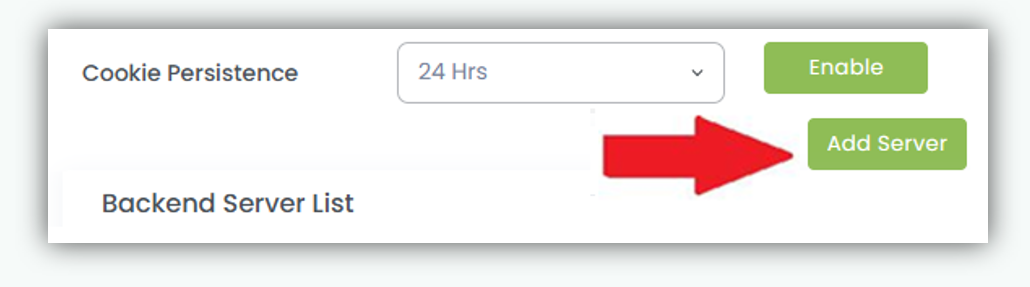
- Open Add Server dialog. Clicking the Add Server button below the Cookie Persistence enable/disable button will open the add server dialog.
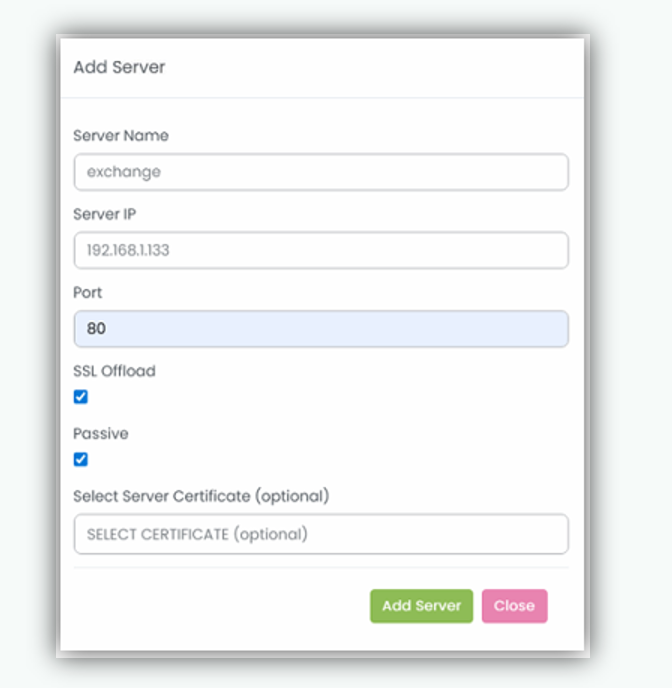
- Enter Server Name
Provide a unique and meaningful name for the backend server to easily identify it within the backend server list. - Specify IP Address
Enter the IP address of the backend application server that will receive traffic. - Specify Port
Enter the service port on which the backend server is listening (for example: 443, 8080). - Enable SSL Offload (Optional)
If SSL offloading is required at the backend level, select the SSL Offload checkbox. When enabled, encrypted traffic will be decrypted before being forwarded to the backend server. - Set Server as Passive (Optional)
Select the Passive checkbox if the backend server should be marked as a passive or standby server. Passive servers do not receive traffic unless active servers become unavailable. - Select Server Certificate (Optional)
In certain scenarios, SSL certificates may not be trusted if the required CA bundle or intermediate certificates are missing. In such cases, the backend server’s CA bundle certificate must be configured. Select the appropriate certificate from the available certificate list to ensure proper SSL trust validation - Click Add Server
Click ADD SERVER to save the backend configuration and attach the server to the selected frontend.
Update Backend Server Configuration
The Update button allows administrators to apply and save changes made to an existing backend server configuration.
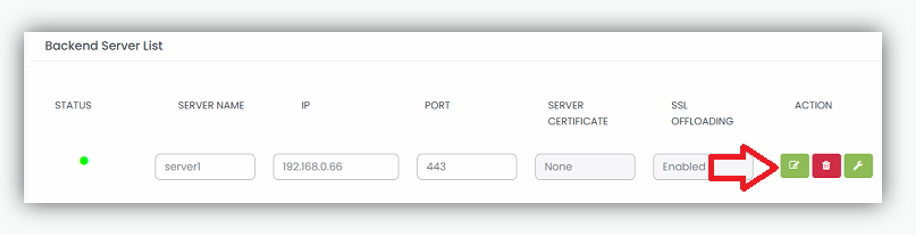
Update Backend Server Button
- The Update button is available in the Action column of the Backend Server List.
- It applies and saves any modifications made to the following backend server fields:
- Server Name
- IP Address
- Port
- SSL Offloading
Click Update Backend Server after editing any of these fields to apply the changes. Once the backend server configuration is successfully updated, a confirmation pop up message is displayed.
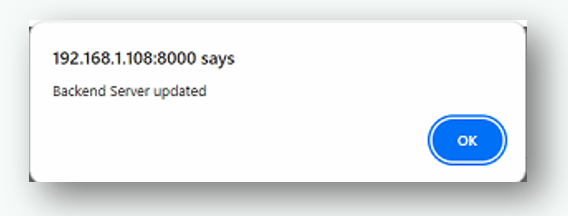
Note : Any updates performed will take effect immediately after being saved.