Installation
This section describes the standard installation procedure for nBalance version 21.1.1. It is intended for system administrators and deployment engineers responsible for installing and commissioning nBalance in production or test environments.
1. Prerequisites
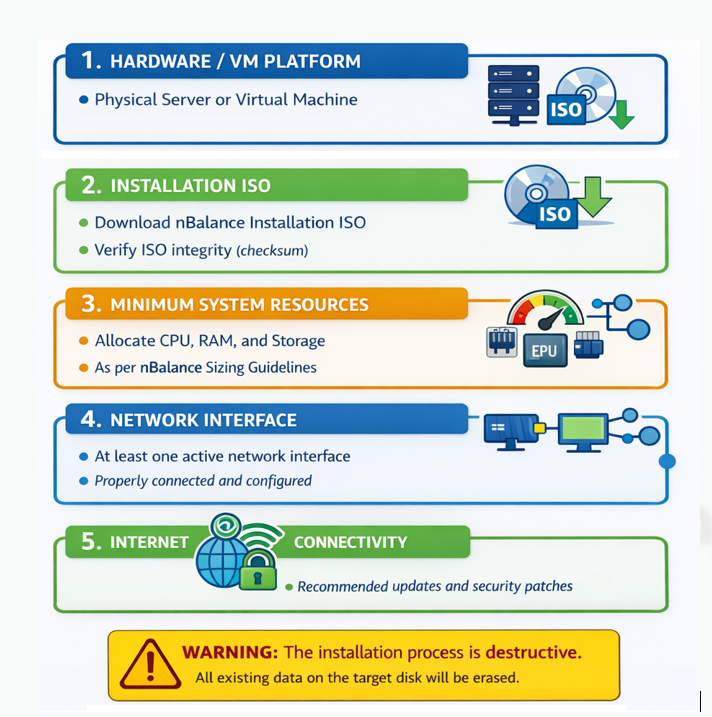
Before starting the installation, ensure the following requirements are met:
- A physical server or virtual machine (VMware / KVM supported)
- nBalance v21.1.2 installation ISO
- Minimum hardware resources as per sizing guidelines
- At least one active network interface
- Internet connectivity (recommended for updates)
- Console access (physical console or VM console)
⚠️ Warning: The installation process is destructive. All existing data on the selected disk will be erased.
2. Booting from Installation Media
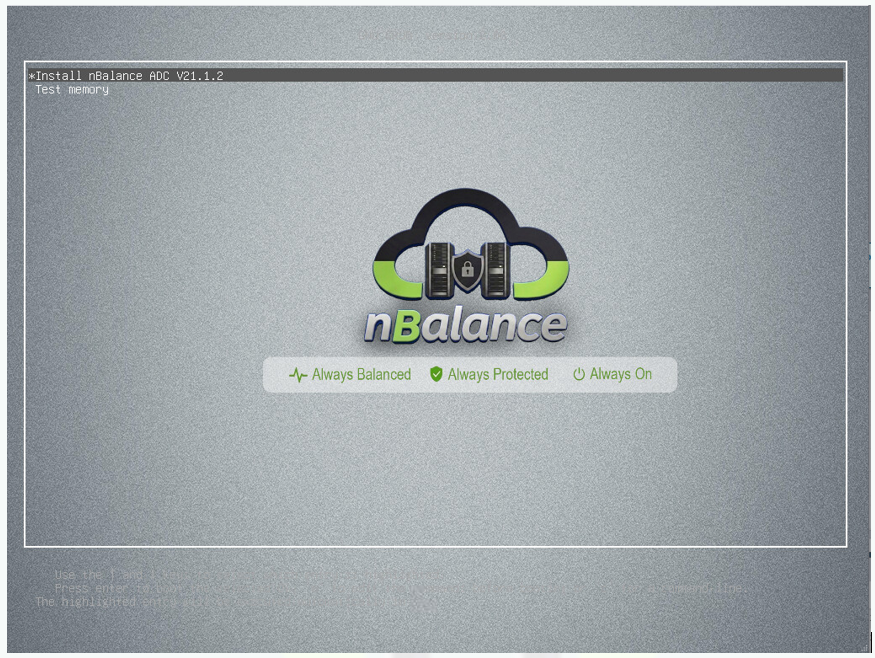
- Attach the nBalance v21.1.1 ISO to VM. or Burn the nBalance v21.1.1 ISO to a DVD
- Boot the system from the ISO/DVD.
- At the menu, select: Install nBalance v21.1.1 and Press Enter.
Note: If no selection is made, the system automatically proceeds with the default option after a 60 second timeout.
3. Initial System Preparation
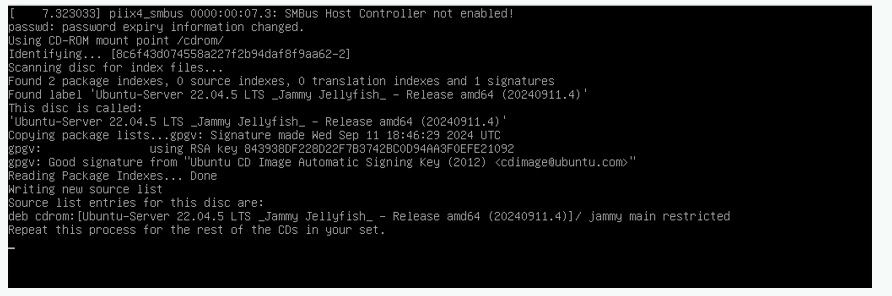
- The ADC installer initializes the environment and loads required components.
- Base repositories and system packages are scanned and prepared.
- This step requires no user interaction.
4. Initializing deployment

Once the installation process begins, the system displays the Installation started status on the console.
This screen confirms that:
- The ADC installer has been successfully initiated
- Required installation scripts are validated
Important:
Powering off or rebooting the system at this stage may result in an incomplete or corrupted installation.
The installer runs automatically without user intervention and proceeds with:
- Network Initialization.
- System initialization
The process continues until the next installation stage is reached.
5. Network Configuration
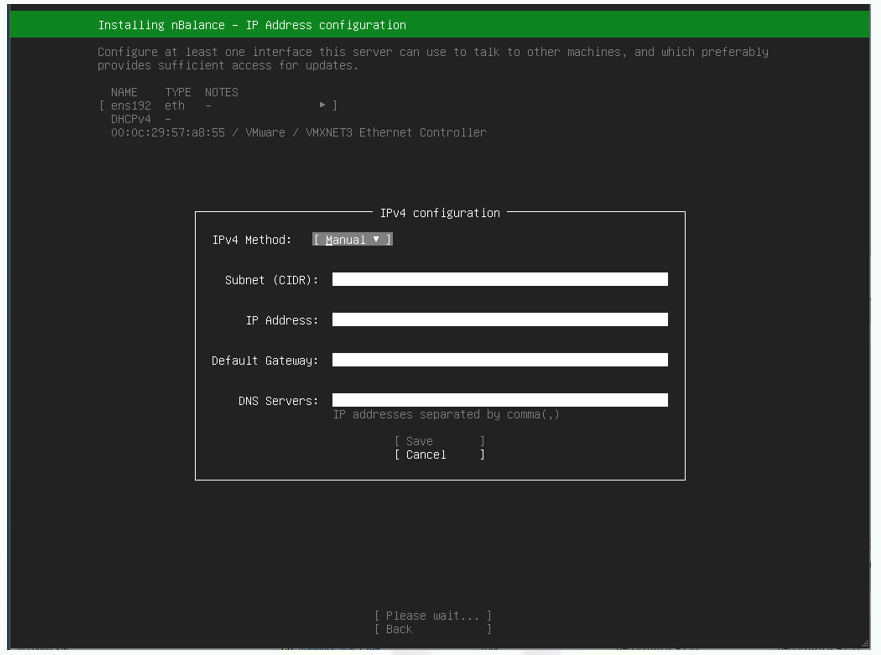
During installation, ADC installer prompts for IP address configuration.
5.1 Interface Selection
- The selected interface will be used for:
- Management access
- System updates
- Administrative services
5.2 IPv4 Configuration
For Manual configuration, provide:
- Subnet (CIDR) e.g. 192.168.0.0/24
- IP Address
- Default Gateway
- DNS Servers (comma separated)
Select Save to apply the configuration
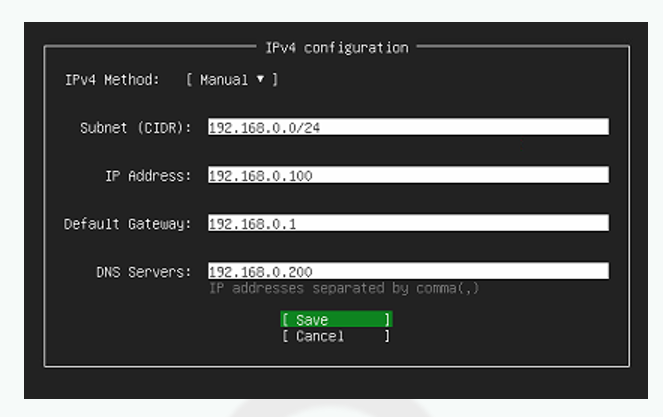
5.3 IP Configuration update
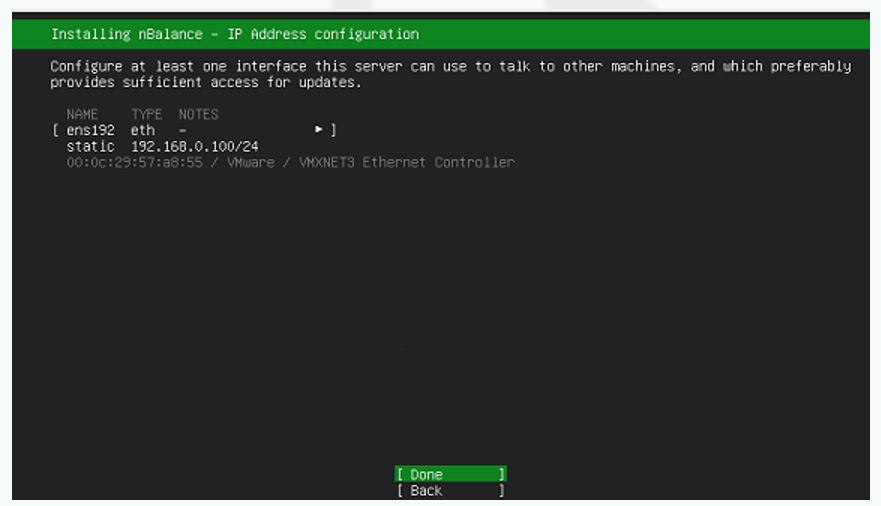
After completing the network interface configuration, wait for the installer to apply the IP address configuration. Once the IP configuration is successfully applied, the status changes to Done. Select Done to confirm the IP configuration to continue with the installation.
5. Applying Installation Configuration.
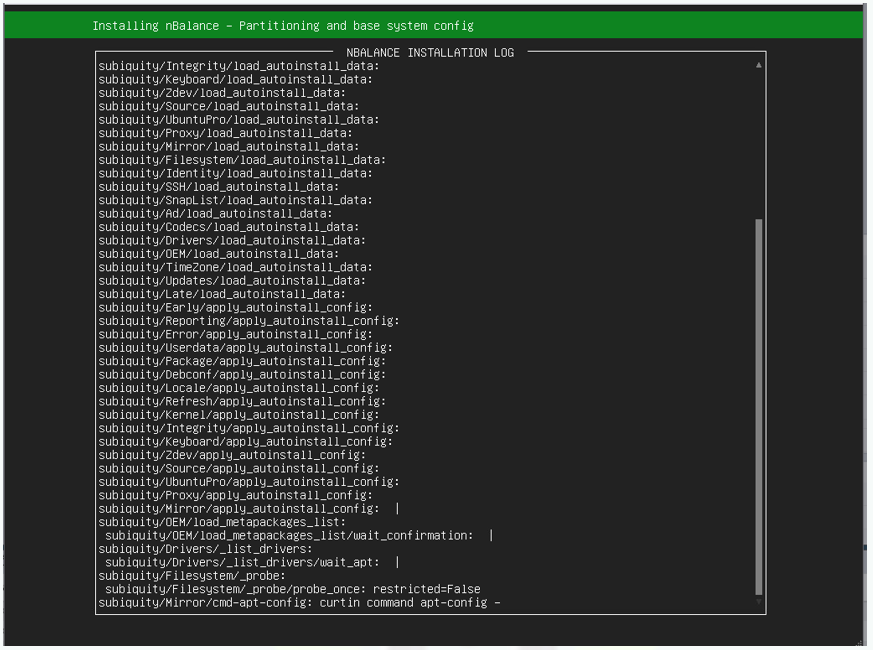
During this stage, the ADC installer automatically performs disk partitioning and base system configuration.
Description
Once the installation proceeds to this phase, the system executes automated tasks to prepare the storage and configure the base operating system.
This includes:
- Creating required disk partitions
- Initializing filesystems
- Applying system and installer configurations
- Deploying base operating system components
6.2 Disk Formatting Confirmation (Destructive Operation)
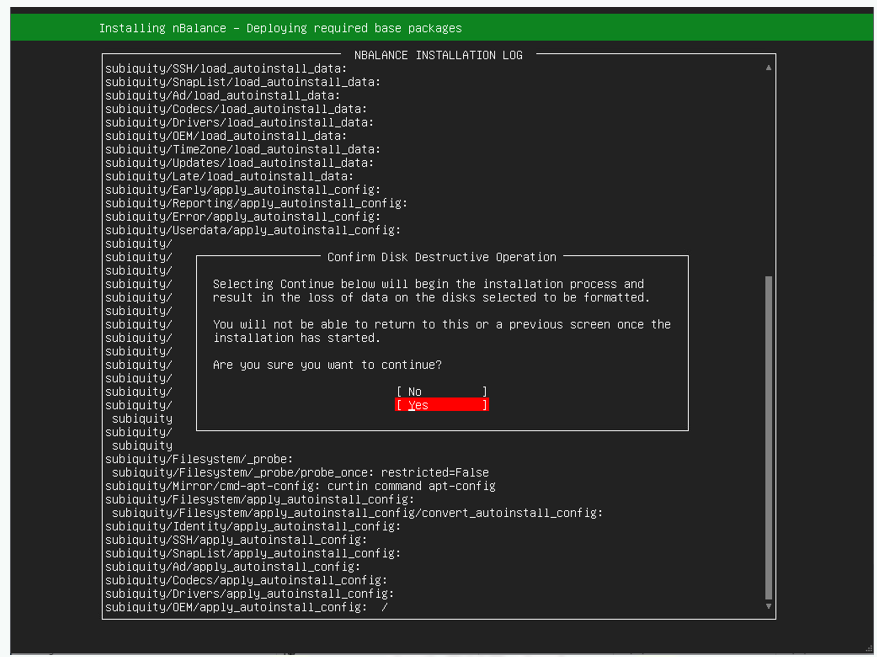
At this stage, the installer requires explicit confirmation before performing a destructive disk operation. Selecting Continue will begin formatting the selected disks and permanently erase all existing data.
The confirmation prompt informs the administrator that:
- All data on the selected disks will be permanently deleted
- The operation is irreversible once the installation proceeds
- It is not possible to return to this or any previous screen after confirmation
To proceed with disk formatting and installation:
- Select Yes to confirm the destructive operation.
To cancel the operation:
- Select No to return to the previous screen.
Warning:
This operation will result in complete data loss on the selected disks. Ensure that all required data has been backed up before proceeding.
Once confirmed, the installer continues automatically with disk formatting and deployment of required base packages.
7. Deploying Required Base Packages
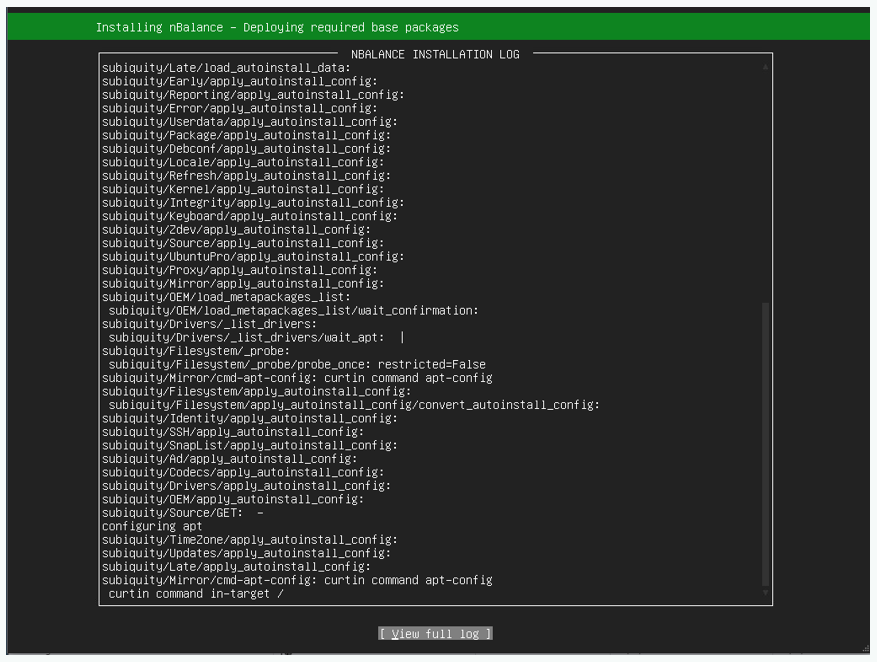
At this stage, the nBalance installer installs the base operating system and applies all required system and packages necessary for the platform to function.
This phase includes:
- Installation of core operating system components
- Deployment of required system libraries and dependencies
- Application of installer configurations
- Preparation of the runtime environment. The on screen installation log displays real time progress of package installation and configuration tasks.
All operations are performed automatically and do not require user interaction.
Important:
Do not interrupt the system while base packages are being installed. Interrupting this process may result in an incomplete installation or unstable system state.
Once all required packages are successfully installed, the installer automatically proceeds to the next installation phase.
8. Installing Critical Updates
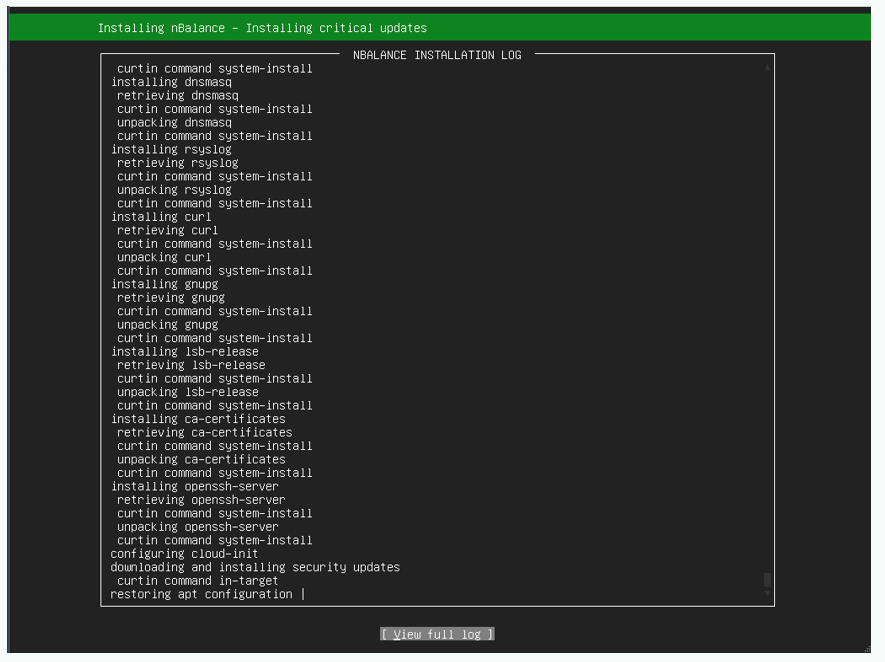
During this phase, the installer applies critical security updates to the base operating system to ensure system stability and security before the nBalance application is initialized.
This phase includes:
- Installation of security related system packages
- Applying base OS security patches
- Updating certificates and core system services
- Preparing the system for secure application deployment
9.Preparing the System for First Boot.
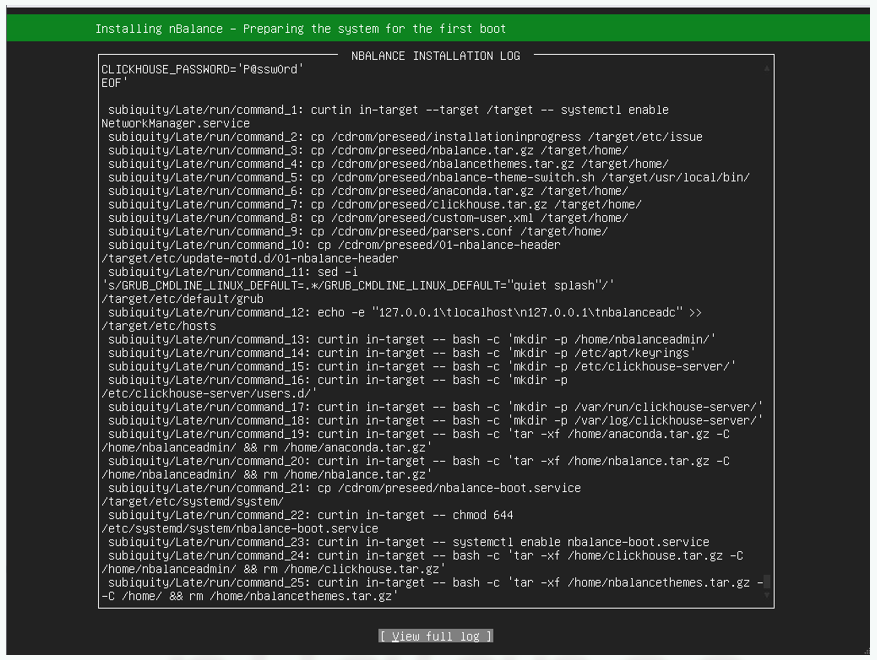
During this phase, the installer prepares the system for the first boot after installation by completing final configuration and setup tasks.
At this stage, the nBalance installer performs final operating system and service configuration required before the system restarts and transitions to first boot initialization.
This phase includes:
- Enabling required system services
- Installing and configuring boot and startup components
- Applying installer cleanup tasks
- Finalizing system files and runtime settings
- Preparing the environment for nBalance application initialization
✅ No action is required from the user during this phase.
Important:
Do not interrupt the system while it is preparing for the first boot. Interrupting this process may result in incomplete configuration or require reinstallation.
Once this phase is completed successfully, the installer proceeds to the restart prompt to continue the installation
10.Restart Prompt for the First Boot
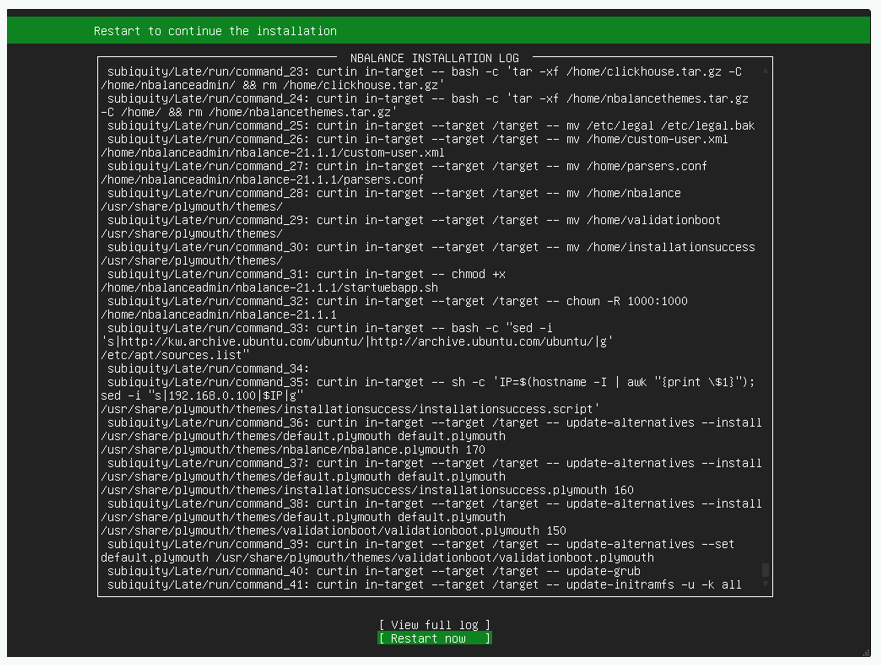
At this stage, the installer has completed the required operating system setup, package installation, and configuration tasks. The system displays a Restart now prompt to proceed with the next phase of installation.
This screen indicates that the initial installation phase has completed successfully, and a system restart is required to continue.
The on screen installation log shows the final execution of installer commands related to:
- System service configuration
- Boot and startup configuration
- Installer cleanup tasks
- Finalization of installation scripts
These log entries are displayed for informational and diagnostic purposes only and do not require user review.
To proceed:
- Select Restart now to reboot the system and continue with the installation.
Note:
The presence of installer log messages on this screen does not indicate an error. This is a normal part of the installation process.
After the restart, the system transitions to the Initial Configuration and Validation phase.
11.Initial Configuration and Validation.
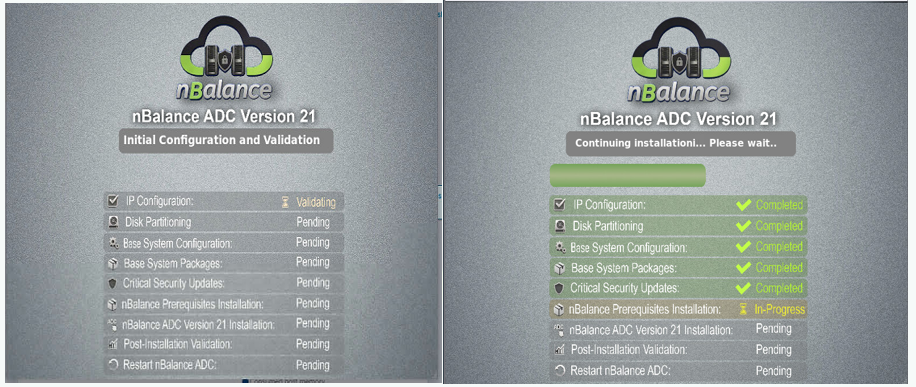
During this phase, the system performs initial configuration validation to verify that all required prerequisites are met before continuing with the installation.
Description
At this stage, nBalance validates the configuration and results of previously completed steps to ensure the system is in a consistent and ready state to proceed with installation.
The validation process includes:
- Verifying IP configuration
- Validating results of completed system preparation tasks
- Checking prerequisites required for disk partitioning and package deployment
- Ensuring system readiness for subsequent installation phases
The validation status is reflected in real time:
- Validating indicates the system is actively performing checks
- Completed confirms successful validation of a step
- Pending indicates steps that will be executed next
Once validation is successfully completed, the system automatically proceeds with the installation and transitions to the next phases, such as:
- Disk Partitioning
- Base System Configuration
- Base System Package Deployment
✅ No action is required from the user during this phase.
Note:
This validation step is mandatory and ensures that the installation proceeds only when the system meets all required conditions.
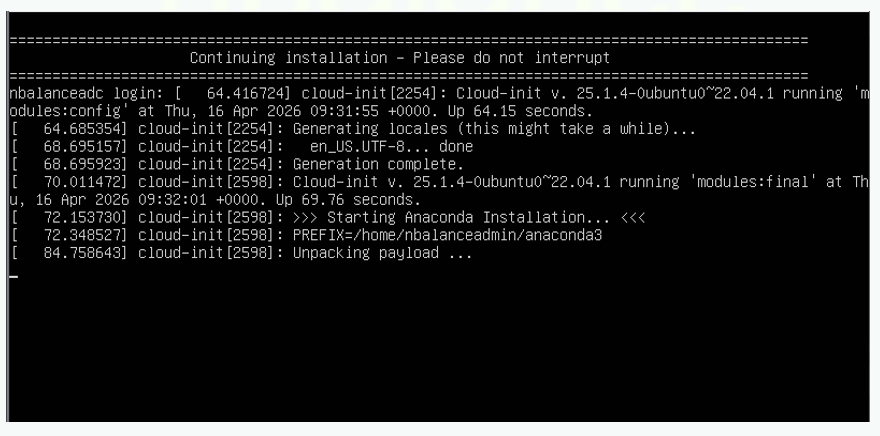
Upon successful validation, the installer displays “Continuing installation… Please wait” and advances automatically to the next installation stage.
12.Installation Completed Successfully.
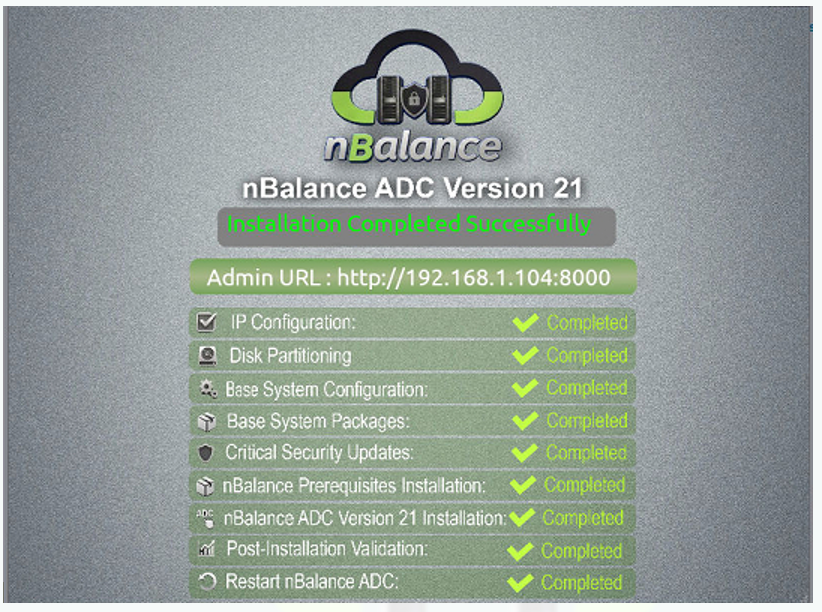
Installation Completed Successfully
Once all installation phases are completed, the system displays a confirmation screen indicating that nBalance ADC has been installed successfully.
Description
This screen confirms the successful completion of the nBalance ADC installation. All required installation steps have been executed without errors.
The following phases are marked as Completed:
- IP Configuration
- Disk Partitioning
- Base System Configuration
- Base System Packages
- Critical Security Updates
- nBalance Prerequisites Installation
- nBalance ADC Version 21 Installation
- Post Installation Validation
- Restart nBalance ADC
The screen also displays the Admin URL, which can be used to access the nBalance web interface after the system startup is completed.
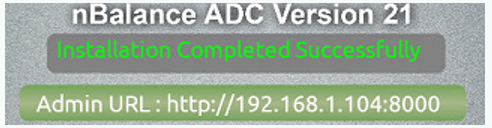
Note : No action is required from the user at this stage
13.System Startup and Service Initialization.
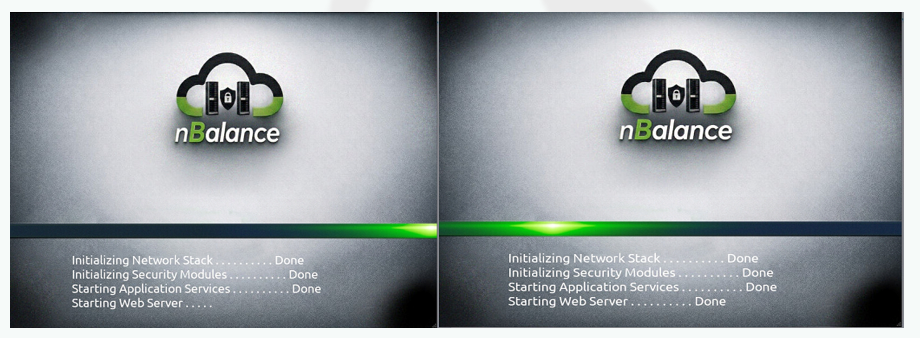
After installation completion, the system proceeds with initial startup and service initialization.
Description
During this phase, nBalance initializes core system components and application services required for normal operation.
This includes:
- Loading Kernel
- Initializing System Services
- Initializing the network stack
- Initializing security modules
- Starting nBalance application services
- Starting the nBalance web server
Each component displays a Done status once initialization is successful.
✅ No user intervention is required during this process.
✅ Once “Starting Web Server … Done” is displayed, the system is fully operational and the Admin URL can be accessed using a web browser.
Final Console and System Ready
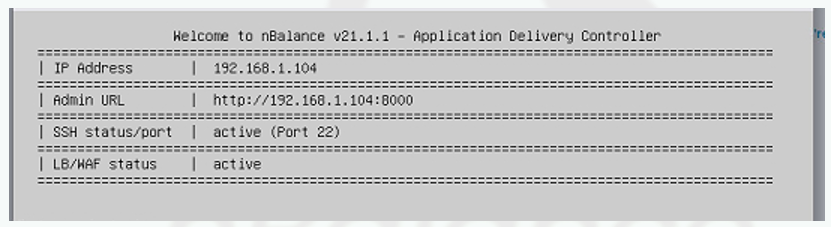
After all installation phases and service initialization steps are completed, the system displays the final console, indicating that nBalance ADC is fully installed and operational. Final Console After Successful Installation
Description
This screen confirms that the nBalance ADC installation has completed successfully and that all core services are running.
The console displays key system information, including:
- IP Address assigned to the system
- Admin URL for accessing the nBalance web interface
- SSH Status (including the active port)
- LB/WAF Status, confirming that core application delivery services are active
The console output indicates that the system is stable and ready for administrative access.
14.Web Interface ready for Login.
After installation and system startup are completed, the nBalance web interface becomes available for administrative access.
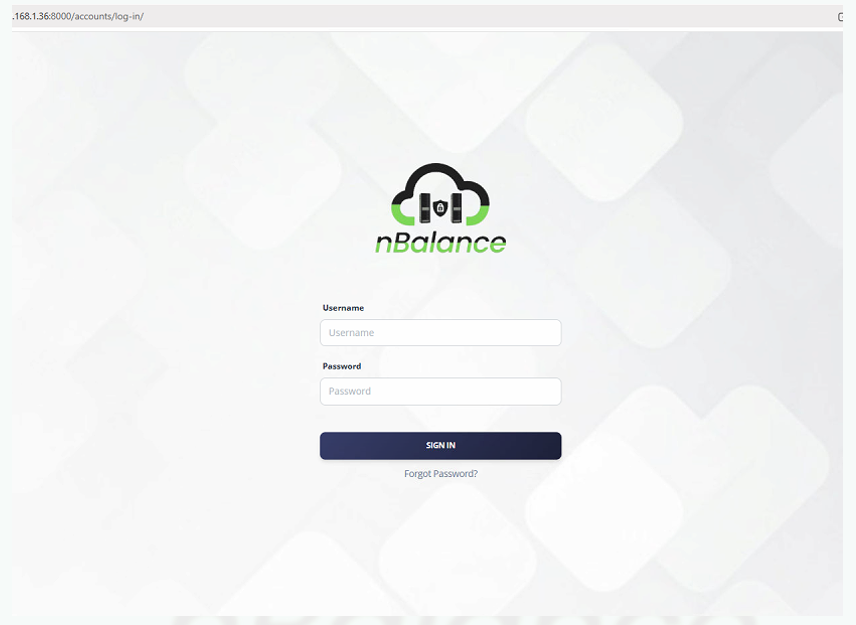
nBalance Web Login Page
Description
This screen confirms that the nBalance ADC web interface is fully initialized and ready for login.
✅ Once this login page is displayed, the installation process is complete and the system is ready for configuration.
To log in for the first time, use the default administrator credentials provided in the documentation:
🔗 Default Credentials: See Default Credentials
Security Recommendation:
For security reasons, it is strongly recommended to change the default credentials immediately after the first login.