Frontend Server
Before setting up the front end of nBalance, the first step is to add a Virtual IP (VIP). This VIP serves as the special address that clients use to connect to our servers. It's like the entry point for clients.
After adding Virtual IP follow the below steps:
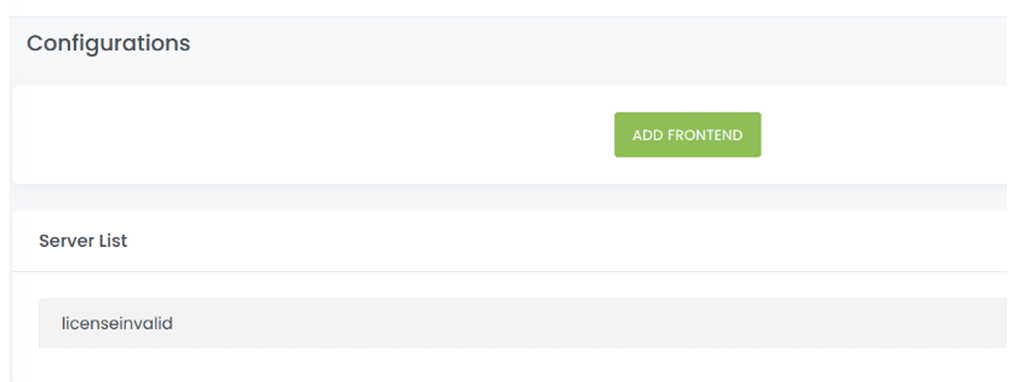
Click on > FRONTEND button. When frontend is added, it will display under the corresponding tab under the same page.
The tab contains following fields:
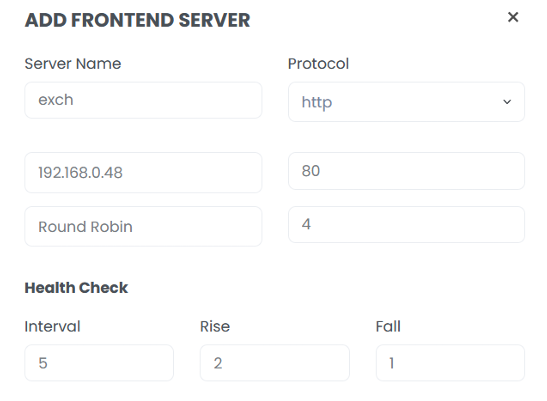
- Service/Frontend Server: Give a name to your frontend server (Ex: - EXCHANGE)
- Protocol: click here to select a protocol/service of the real/backend servers (e.g. – http, https)
- Bind: Select the Virtual IP Address you added to the Frontend Server.
- Balance Method: Here you can select the balancing method. e.g. DNS Round Robin, Least Connection. If you select Round Robin, it will give the IP Address from the group separately from one by one. In Least Connection, it directs incoming network traffic to the server with the fewest active connections at any given time.
- Interval: Load Balancer sends a heartbeat to the server in every specific interval. By default, it is 5 sec.
- Fall: Specifies the number of failed counts that a heartbeat check failed to send a failure report that the server is down.
- Rise: No. of success counts that a heartbeat check occurred to activate the server and send
an active message.
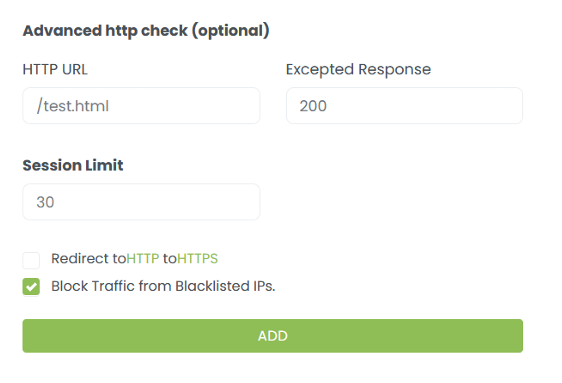
Advanced http check (optional): active frontend and real/backend servers added by the
user.
user. - Active health checks: You can proactively check the health of your backend servers and remove them from the load balancer rotation until they're up and running again. ALOHA provides a way to monitor the health of your servers using the HTTP protocol.
- HTTP URL: It will help the user to send and receive a code request.
- Expected Response: The option advance health check sends an HTTP request to the server and expects to get a successful response. The response status code should be in the 2xx/3xx/4xx to consider it as successful. Session Limit: It restricts the number of concurrent or active sessions that can be maintained on a particular server.
Screenshot for add frontend server.
Frontend Added
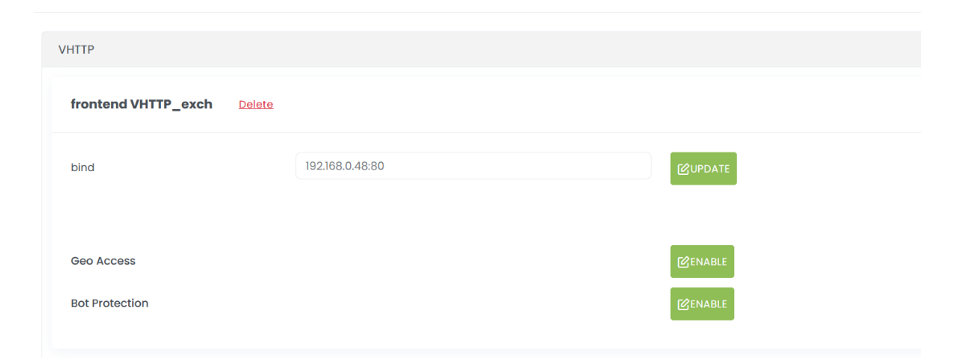
Below shows the added frontend server. The page also provides an UPDATE button. to update any changes in the added frontend. DELETE button provided to delete the added server.